Poll Everywhere enables their users, including 300k educators and employees at over 75% of Fortune 500 companies, to engage audiences through live online polling, surveys, Q&As, quizzes, word clouds, and more.
Company
Poll Everywhere
Role
Product Designer
Timeline
May 2023
—
Aug 2023

Project Overview
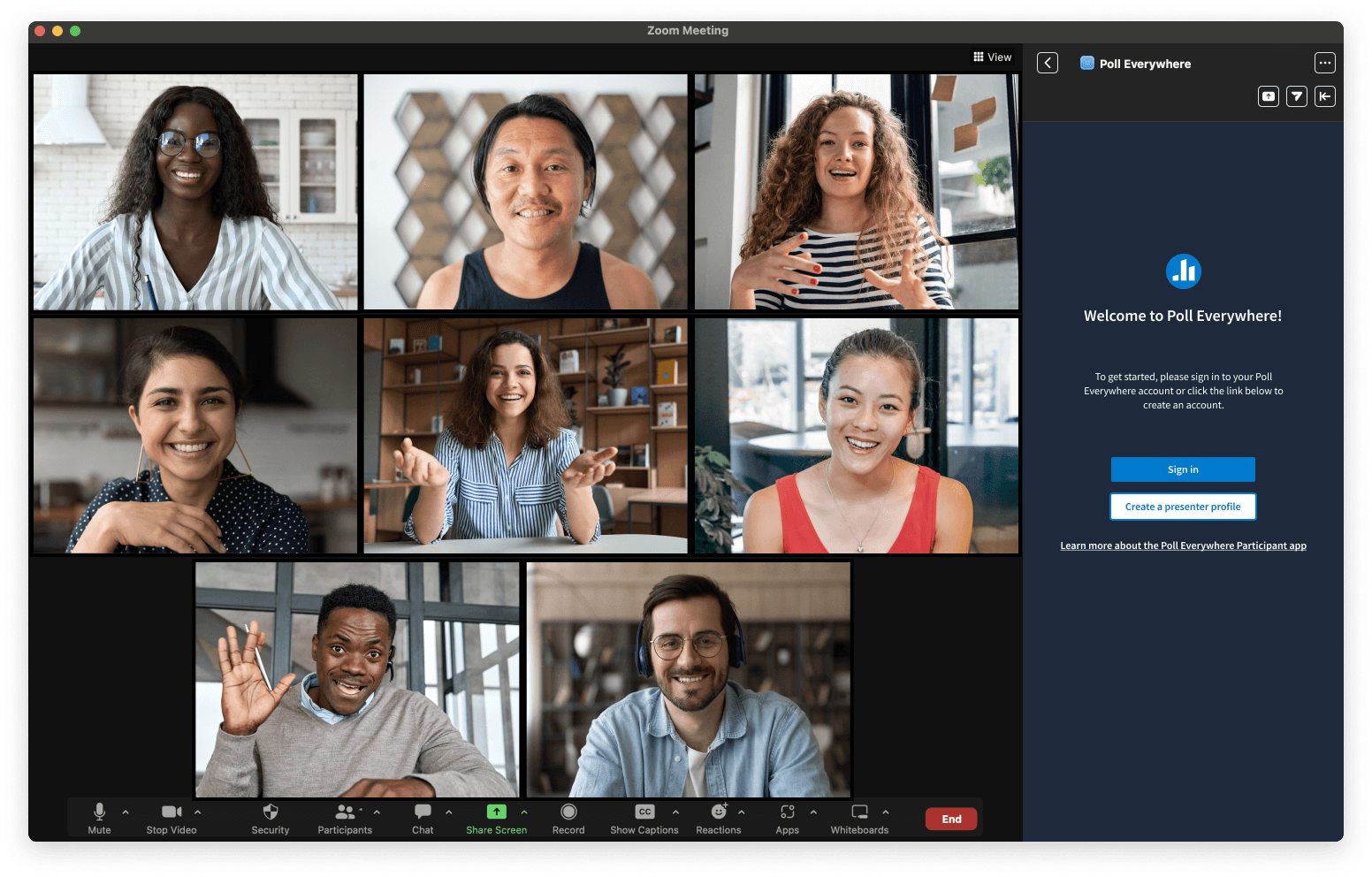
The customer service department brought up to my engineering team that users had widely requested a Zoom app, an extension that would need to be designed from scratch. I worked on a flow chart and screens for 3 main areas of the project — a login flow, marketplace home screen, and app store marketing images — in coordination with my PM, engineers, and a marketing manager.
The app had to cover 2 different user types with separate work flows:
Presenters - people who are leading a call and will use Poll Everywhere to present a poll or other activity to the other meeting participants.
Participants - people who are in the call and will use Poll Everywhere to respond to or participate in the activity but are not admins.
Challenges
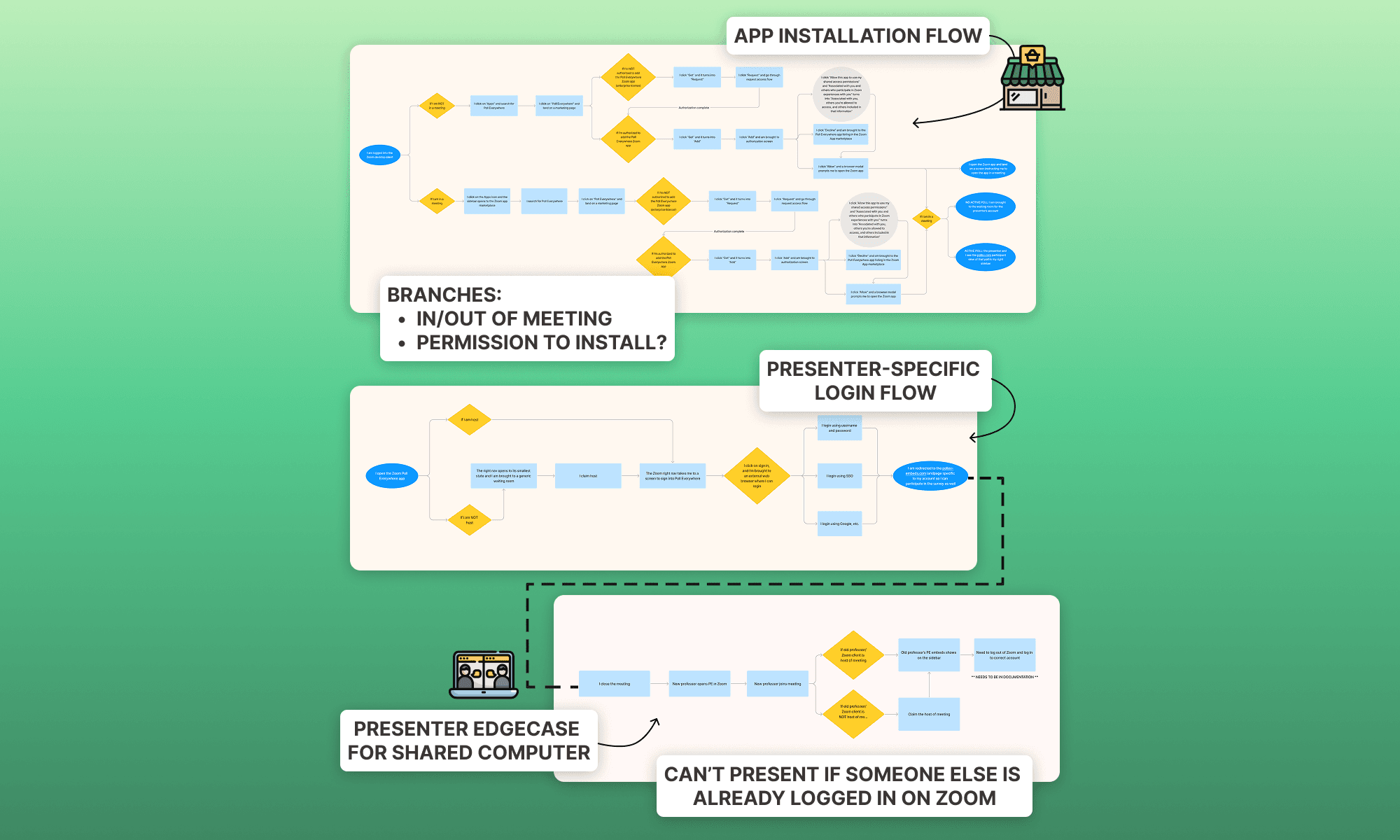
I created a flow chart that would also serve as a guide for customer service post-launch.
This flow chart covered 2 areas of usage:
Installing the app - same across both presenter and participant flows
Logging into your account - different for presenters vs participants
Many of our users can get stuck in permissions linked to a enterprise or education account. This could raise questions like "Why can't I share this poll from my browser?" because they forgot they weren't on the professional account.
While going through the workflow with an engineer, I discovered a possible edge case for educators or presenters on shared devices — if presenter A was still logged into their Zoom account on a public computer, presenter B would need to log into the correct Zoom account associated with their Poll Everywhere log-in. I flagged this with my PM, corrected the issue with an additional section in the flow chart, and put a note in public documentation.
Results
I had 3 major areas to design on this project:
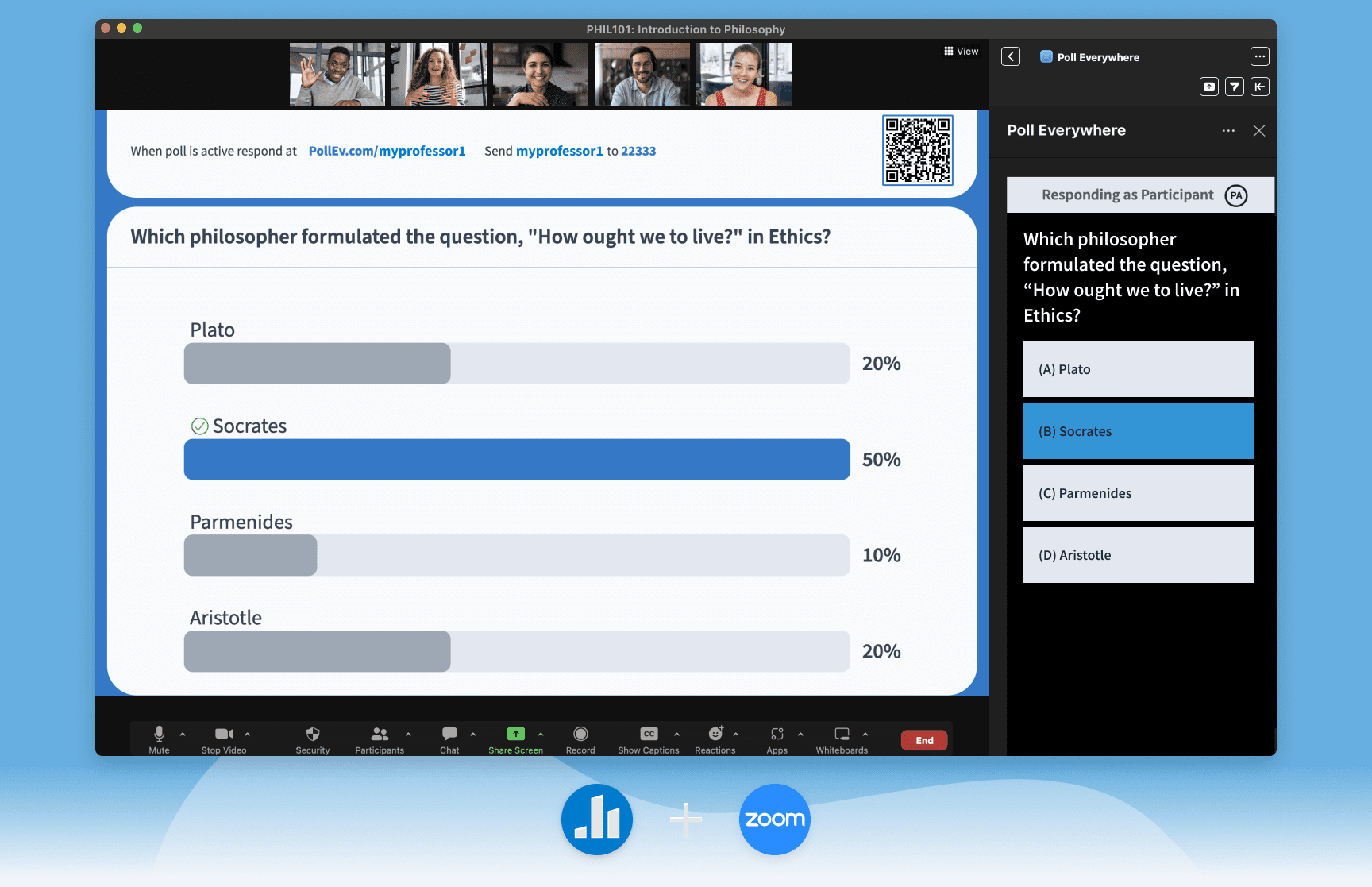
Sidebar: There are a few states of the sidebar depending on whether you are the meeting host (the Presenter use case) or a participant. Those states of the sidebar are: sign-in state for a Host/Presenter, sign-in state for a Participant, response state for a Participant.
One limitation I faced was the response screen which the engineers informed me could not be altered from its current state. I made a note of this to return to enforce newer UI guidelines here and in corresponding places in other app integrations.
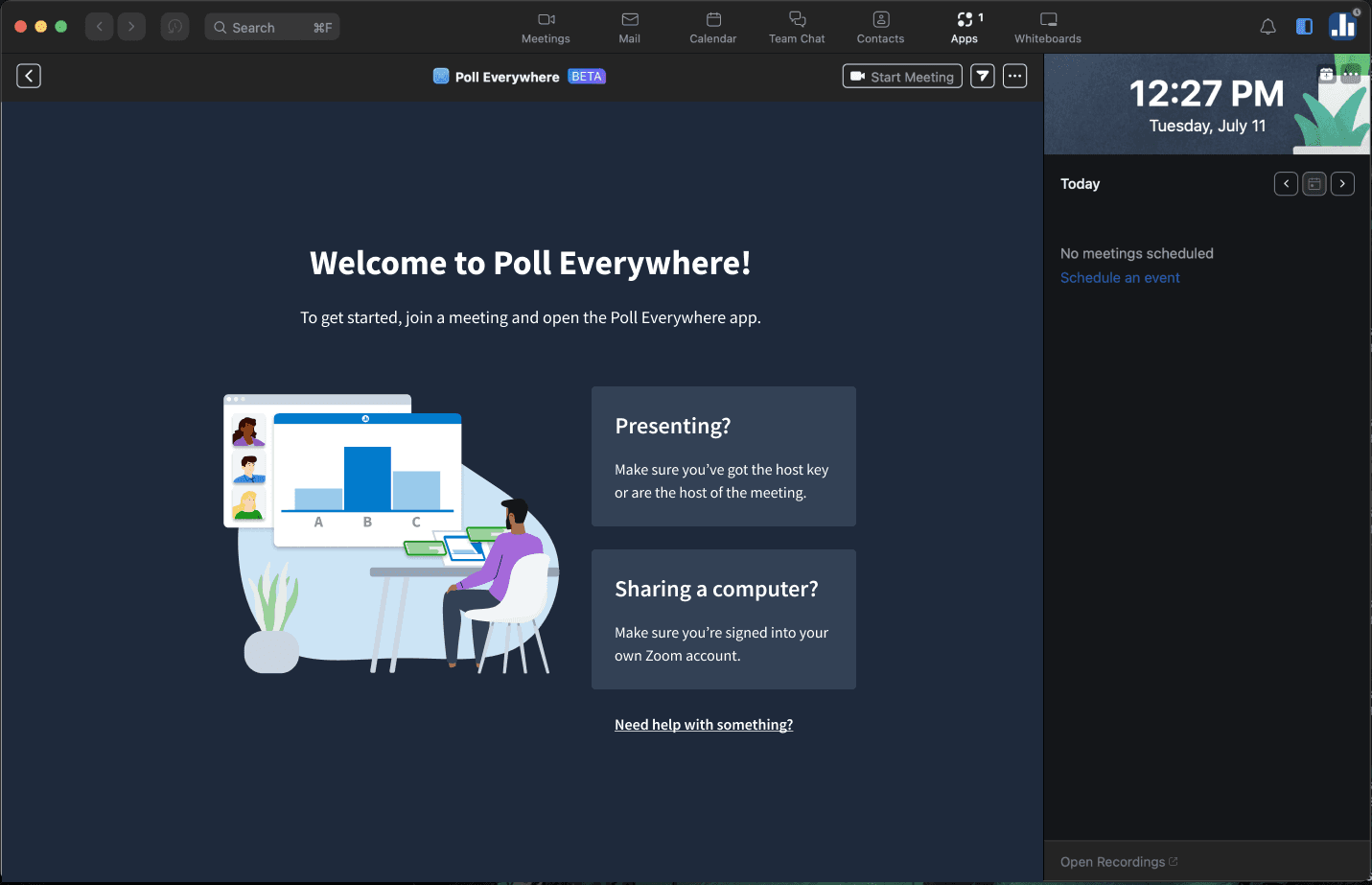
Extension Home Screen: Based on competitive research, this section could house quick actions or reminders for Zoom users. My PM and I decided to go with 2 questions as headers that corresponded with important branching points in the workflow.
Presenting? Make sure you’ve got the host key or are the host of the meeting.
Sharing a computer? Make sure you’re signed into your own Zoom account.
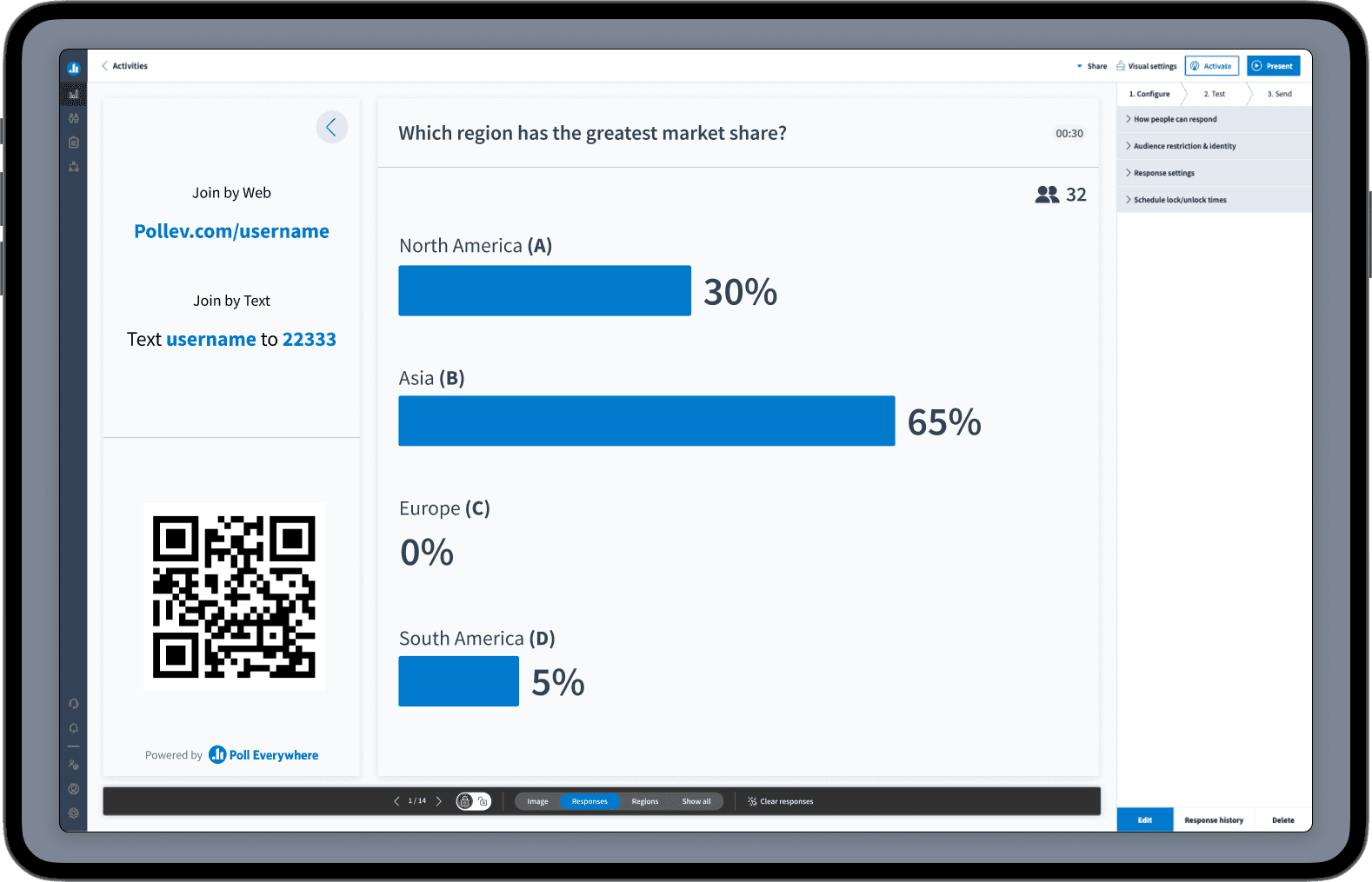
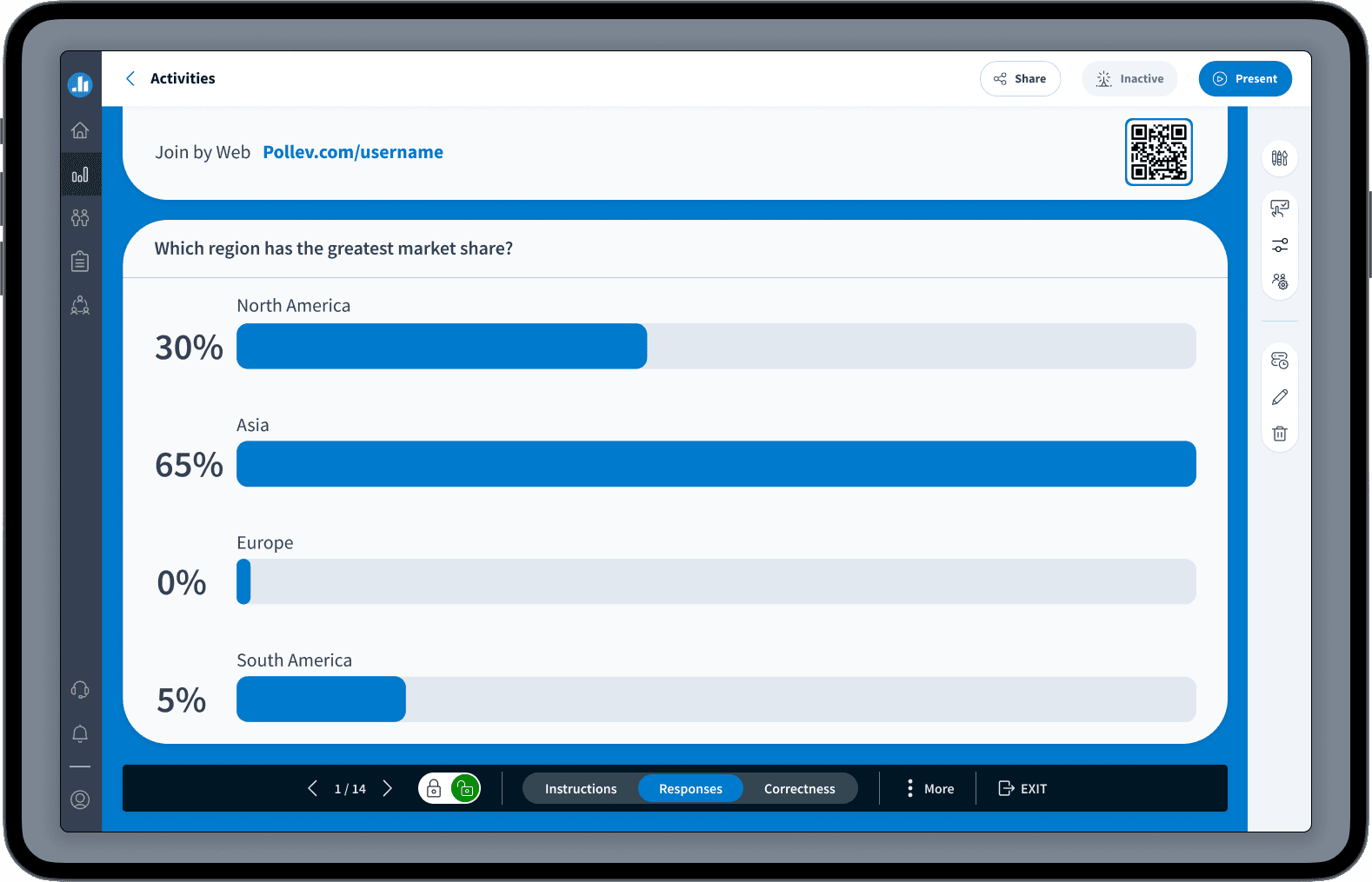
Marketplace Images: I worked with a marketing manager on mock-ups of what a Zoom user would see in their meeting with the PE app open in their sidebar, or with an activity being presented for answers.
My PM held a successful company-wide demo of the beta version. Participants on a company-wide Zoom call joined the beta, installed the app, and logged in with their Poll Everywhere accounts to respond to a quick survey. From chat comments and Slack feedback, it was a resounding success, showcased the app log-in and participant response, and highlighted the improved UI.
The app is currently live on the Zoom app store! You can see my work both in the marketplace images and in the app itself.
Other projects


Poll Everywhere enables their users, including 300k educators and employees at over 75% of Fortune 500 companies, to engage audiences through live online polling, surveys, Q&As, quizzes, word clouds, and more.
Company
Poll Everywhere
Role
Product Designer
Timeline
May 2023
—
Aug 2023
Project Overview
The customer service department brought up to my engineering team that users had widely requested a Zoom app, an extension that would need to be designed from scratch. I worked on a flow chart and screens for 3 main areas of the project — a login flow, marketplace home screen, and app store marketing images — in coordination with my PM, engineers, and a marketing manager.
The app had to cover 2 different user types with separate work flows:
Presenters - people who are leading a call and will use Poll Everywhere to present a poll or other activity to the other meeting participants.
Participants - people who are in the call and will use Poll Everywhere to respond to or participate in the activity but are not admins.
Challenges
I created a flow chart that would also serve as a guide for customer service post-launch.
This flow chart covered 2 areas of usage:
Installing the app - same across both presenter and participant flows
Logging into your account - different for presenters vs participants
Many of our users can get stuck in permissions linked to a enterprise or education account. This could raise questions like "Why can't I share this poll from my browser?" because they forgot they weren't on the professional account.
While going through the workflow with an engineer, I discovered a possible edge case for educators or presenters on shared devices — if presenter A was still logged into their Zoom account on a public computer, presenter B would need to log into the correct Zoom account associated with their Poll Everywhere log-in. I flagged this with my PM, corrected the issue with an additional section in the flow chart, and put a note in public documentation.
Results
I had 3 major areas to design on this project:
Sidebar: There are a few states of the sidebar depending on whether you are the meeting host (the Presenter use case) or a participant. Those states of the sidebar are: sign-in state for a Host/Presenter, sign-in state for a Participant, response state for a Participant.
One limitation I faced was the response screen which the engineers informed me could not be altered from its current state. I made a note of this to return to enforce newer UI guidelines here and in corresponding places in other app integrations.
Extension Home Screen: Based on competitive research, this section could house quick actions or reminders for Zoom users. My PM and I decided to go with 2 questions as headers that corresponded with important branching points in the workflow.
Presenting? Make sure you’ve got the host key or are the host of the meeting.
Sharing a computer? Make sure you’re signed into your own Zoom account.
Marketplace Images: I worked with a marketing manager on mock-ups of what a Zoom user would see in their meeting with the PE app open in their sidebar, or with an activity being presented for answers.
My PM held a successful company-wide demo of the beta version. Participants on a company-wide Zoom call joined the beta, installed the app, and logged in with their Poll Everywhere accounts to respond to a quick survey. From chat comments and Slack feedback, it was a resounding success, showcased the app log-in and participant response, and highlighted the improved UI.
The app is currently live on the Zoom app store! You can see my work both in the marketplace images and in the app itself.